There’s nothing quite as irritating as settling in to enjoy your favorite tunes, only for your Bluetooth speaker to suddenly cut out. That jarring silence, followed by the struggle to reconnect, can quickly turn a relaxing moment into a tech headache. If you’ve experienced this frustrating phenomenon, you’re certainly not alone. Many factors can interrupt the seamless flow of wireless audio, from common household interference to software glitches. This guide will unravel the mystery behind why your Bluetooth speaker keeps disconnecting and provide you with actionable steps to regain a stable, crystal-clear connection.
Understanding Bluetooth: The Invisible Link
At its core, Bluetooth technology creates a short-range wireless connection between two devices, enabling them to exchange data or stream audio without physical cables. It operates primarily on the 2.4 GHz radio frequency band, a public thoroughfare shared by numerous household gadgets. While incredibly convenient, this shared frequency is also the root cause of many connectivity challenges. Bluetooth has evolved significantly since its inception, with newer versions offering improved range, speed, and energy efficiency. Despite these advancements, the fundamental principles of wireless communication mean that signals can still be vulnerable to disruption.
Common Culprits: Why Your Speaker Keeps Cutting Out
Several reasons can cause your Bluetooth speaker to sporadically disconnect. Understanding these common culprits is the first step toward a lasting solution.
Wireless Interference and Congested Airwaves
|
Our Picks for the Best Bluetooth speaker in 2026
As an Amazon Associate I earn from qualifying purchases.
|
||
| Num | Product | Action |
|---|---|---|
| 1 | JBL FLIP 5, Waterproof Portable Bluetooth Speaker, Black, Small |

|
| 2 | BolaButty Bluetooth Speaker with HD Sound, Portable Wireless, IPX5 Waterproof, Up to 20H Playtime, TWS Pairing, BT5.3, for Home/Party/Outdoor/Beach, Electronic Gadgets, Birthday Gift (Black) |
|
| 3 | Bose SoundLink Flex Bluetooth Speaker (2nd Gen) - Portable Outdoor Speaker with Hi-Fi Audio, Waterproof and Dustproof, USB-C, Up to 12 Hours Battery Life, Twilight Blue - Limited Edition Color |
|
| 4 | Soundcore Boom 2 By Anker, Outdoor Speaker, 80W, Subwoofer, BassUp 2.0, 24H Playtime, IPX7 Waterproof, Floatable, RGB Lights, USB-C, Custom EQ, Bluetooth 5.3, Portable for Camping and Beach - Black |
|
| 5 | Anker Soundcore 2 Portable Bluetooth Speaker, 12W Stereo Sound with Deep Bass, IPX7 Waterproof, 24-Hour Playtime, Built-in Mic, for Home, Outdoors & Travel |
|
| 6 | Portable Bluetooth Speaker, IPX7 Waterproof Wireless Speaker with 20W Loud Stereo Sound, 15H Playtime & Beat-Synced RGB Light, Small Outdoor Speaker for Shower, Pool, Beach, Hiking and Gifts |
|
| 7 | JBL Go 3 - Portable Mini Bluetooth Speaker, big audio and punchy bass, IP67 waterproof and dustproof, 5 hours of playtime, speaker for home, outdoor and travel (Black) |
|
| 8 | JBL Charge 6 - Portable Waterproof & Drop-Proof Bluetooth Speaker, Bold JBL Pro Sound with AI Sound Boost, 28Hrs of Playtime, Built-in powerbank & Comes with a Sturdy/Removable Carrying Strap (Black) |
|
| 9 | JBL Go 4 - Ultra-Portable, Waterproof and Dustproof Bluetooth Speaker, Big JBL Pro Sound with Punchy bass, 7-Hour Built-in Battery, Made in Part with Recycled Materials (Blue) |
|
| 10 | Monster S620 Bluetooth Speaker, Wireless Portable Outdoor Bluetooth Speakers, 60W True Wireless Stereo IPX8 Waterproof, Dual PairingBluetooth 5.4 Built-in Mic, Perfect for Home, Blue |
|
Imagine your Bluetooth signal as a tiny car on a busy highway. Bluetooth operates on the 2.4 GHz frequency band, which is also used by Wi-Fi networks (especially older routers), microwave ovens, cordless phones, baby monitors, and even some LED lights and USB 3.0 ports. When these devices are active, they create “noise” that can overwhelm or interrupt the delicate Bluetooth signal, leading to dropouts and disconnections.
Distance and Physical Obstacles
Bluetooth technology has a limited range, typically around 10 meters (33 feet) in an open environment. Pushing beyond this limit or having physical barriers between your speaker and the source device can severely weaken the signal. Walls, large furniture, metal objects, and even your own body can act as obstacles, making the “invisible wire” shorter and less reliable.
Low Battery on Speaker or Source Device
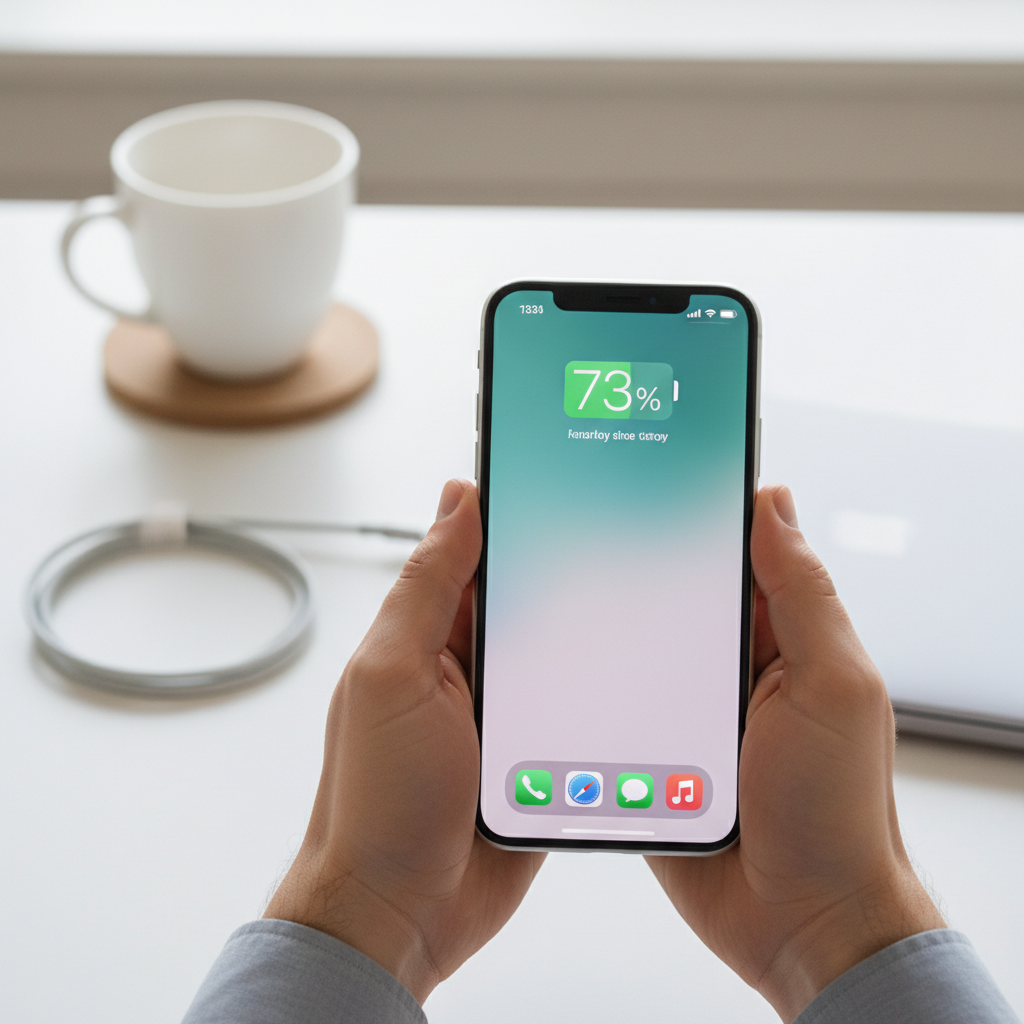
A common but often overlooked reason for intermittent connections is a low battery. When either your Bluetooth speaker or the connected device (phone, tablet, laptop) is running low on power, it may reduce its signal strength to conserve energy. This power-saving measure can lead to instability in the Bluetooth connection and frequent audio interruptions.
Outdated Software, Firmware, or Drivers
The software running on your phone, computer, or even within the speaker itself (firmware) dictates how Bluetooth connections are managed. Bugs, compatibility issues, or outdated versions of this software can manifest as connection drops. Manufacturers regularly release updates to improve stability, performance, and compatibility, making outdated software a significant vulnerability.
Device Compatibility and Bluetooth Version Mismatch
While Bluetooth is designed for broad compatibility, older speakers paired with newer devices (or vice versa) can sometimes struggle to maintain a stable connection. Different Bluetooth versions (e.g., Bluetooth 4.0 vs. 5.0 vs. 5.3) and profiles can lead to subtle compatibility quirks, resulting in intermittent disconnections, particularly when advanced features like multipoint pairing are involved.
Background Apps and Device Overload
Running numerous applications in the background on your source device can consume valuable processing power and memory. If your device is struggling to manage multiple tasks while simultaneously streaming high-quality audio, the Bluetooth connection might become unstable and disconnect. Similarly, connecting too many Bluetooth accessories to a single source device can overload its capabilities.
Corrupted Bluetooth Cache or Software Glitches
Over time, your devices store pairing information and temporary data in their Bluetooth cache. This data can sometimes become corrupted, leading to connection problems. Minor software glitches or bugs within your device’s operating system or the speaker’s internal programming can also cause unexpected disconnections.
Power Management Settings
Modern operating systems on phones and computers often include power-saving features designed to extend battery life. Sometimes, these settings can be overly aggressive and unintentionally turn off the Bluetooth radio or restrict background processes, leading to your speaker randomly disconnecting.
“Consistent Bluetooth disconnections are often a symptom of underlying environmental or software conflicts. Addressing these core issues systematically is key to restoring a stable audio experience.” – Admin ReviewGE, Bluetooth Speaker Technician
Comprehensive Troubleshooting Steps to Restore Your Connection
Don’t let random disconnections ruin your listening experience. Here’s a step-by-step guide to diagnose and fix the problem.
Step 1: The Basics (Restart & Recharge)
Before diving into complex solutions, always start with the simplest ones.
- Restart Both Devices: Power off both your Bluetooth speaker and the source device (phone, tablet, computer). Wait for 10-15 seconds, then power them back on. This simple action can clear temporary software glitches and refresh the Bluetooth connection stack.
- Ensure Sufficient Charge: Verify that both your speaker and your source device have ample battery life. Charge them fully if necessary, as low power is a frequent cause of unstable connections.
Step 2: Optimize Your Environment
Your surroundings play a crucial role in Bluetooth signal stability.
- Minimize Interference Sources: Move your Bluetooth speaker and source device away from potential sources of interference. This includes Wi-Fi routers, microwaves, smart home hubs, cordless phones, and other active Bluetooth devices. If possible, switch your Wi-Fi router to the 5 GHz band, which operates on a different frequency than Bluetooth’s 2.4 GHz, reducing signal overlap.
- Reduce Physical Barriers and Stay Within Range: Keep your speaker and the connected device within the optimal Bluetooth range, typically under 10-15 feet. Ensure there’s a clear line of sight between them, minimizing obstructions like walls, large furniture, or even your own body.
Step 3: Resetting Connections & Software
Sometimes, a fresh start for your connection data or software is needed.
- Forget and Re-pair the Device: On your source device, go to Bluetooth settings, find your speaker in the list of paired devices, and choose “Forget” or “Unpair.” Then, put your Bluetooth speaker into pairing mode and reconnect it. This process clears any corrupted pairing information.
- Clear Bluetooth Cache (Android Specific): On Android devices, clearing the Bluetooth cache can resolve issues. Navigate to
Settings > Apps > See all apps > Show system apps, then find “Bluetooth” and “Bluetooth Share.” Tap onStorage & cache, thenClear cacheandClear storage. Restart your phone and re-pair. - Update OS and Speaker Firmware: Check for and install the latest operating system updates for your smartphone or computer. These updates often include critical Bluetooth stack improvements and bug fixes. For your speaker, visit the manufacturer’s website or use its companion app (if available) to check for firmware updates. Speaker firmware updates can significantly improve stability, range, and battery life.
- Run Bluetooth Troubleshooter (Windows Specific): If you’re using a Windows PC, utilize the built-in troubleshooter. Go to
Settings > System > Troubleshoot > Other troubleshooters, find “Bluetooth,” and click “Run.”
Step 4: Advanced Device & App Settings
Dig deeper into settings to fine-tune your connection.
- Disable Power-Saving Features: On Windows PCs, go to
Device Manager > Bluetooth adapter > Properties > Power Management taband uncheck “Allow the computer to turn off this device to save power.” Reboot your computer. On Android, checkSettings > Battery > Battery optimization, find Bluetooth or your speaker’s app, and set it to “Don’t optimize.” - Close Background Apps / Disconnect Other Bluetooth Devices: Close any unnecessary applications running on your source device, especially those that consume significant resources or manage audio. If you have multiple Bluetooth devices connected (e.g., a smartwatch, headphones, and your speaker), try disconnecting others you’re not actively using to free up bandwidth.
- Check Audio Profiles/Settings: On your source device, ensure the correct audio profile is selected for your speaker. For instance, on Windows, go to
Sound Settings > Outputand select the “Stereo” option for your speaker, rather than “Hands-Free” (which is lower quality and often less stable). Disable any audio enhancements and set the default format to 16-bit, 48000 Hz (DVD Quality). - Consider App-Specific Issues: If the problem only occurs when using a particular music streaming or audio app, try updating the app, clearing its cache, or testing with a different app to see if the issue is isolated.
When to Consider an Upgrade or Professional Help
If you’ve systematically worked through all these troubleshooting steps and your Bluetooth speaker still disconnects randomly, it might be time to consider other options.
- Aging Hardware: Older Bluetooth speakers or source devices with outdated Bluetooth modules (e.g., pre-Bluetooth 4.0) may simply lack the robust connectivity of newer generations. Their hardware limitations might prevent them from maintaining a consistently stable connection, especially in busy wireless environments.
- Persistent Issues: If the problem persists across different source devices and after all troubleshooting, the speaker itself might have a hardware defect. In such cases, contacting the manufacturer’s support or seeking professional repair may be necessary.
- Upgrade to Newer Technology: Modern Bluetooth speakers and source devices often feature advanced Bluetooth versions (like 5.0, 5.2, or 5.3) that offer significantly improved range, stability, and energy efficiency. An upgrade could provide a much more reliable and enjoyable listening experience.
Conclusion
Random Bluetooth speaker disconnections can be incredibly frustrating, but they are rarely unfixable. Most issues stem from common problems like wireless interference, distance limitations, low battery, or outdated software. By systematically troubleshooting and applying the solutions outlined above—from simple restarts and recharges to clearing caches and updating firmware—you can significantly improve the reliability of your wireless audio connection. Remember, a little patience and a methodical approach will often lead you back to uninterrupted sound. Have you found a particularly unusual fix for a disconnecting speaker?