Bluetooth speakers offer unparalleled convenience, transforming your audio experience into a portable and wireless delight. However, the frustrating phenomenon of audio lag, where sound doesn’t quite match the video on your screen or actions in a game, can quickly sour this experience. If you’ve ever watched a movie where the dialogue is a fraction of a second behind the lips, or played a game with delayed sound effects, you understand the annoyance. This guide is crafted to help you understand why this delay happens and, more importantly, provide you with actionable steps to resolve audio lag on your Bluetooth speakers, ensuring a seamless and synchronized listening experience.
What is Bluetooth Audio Lag?
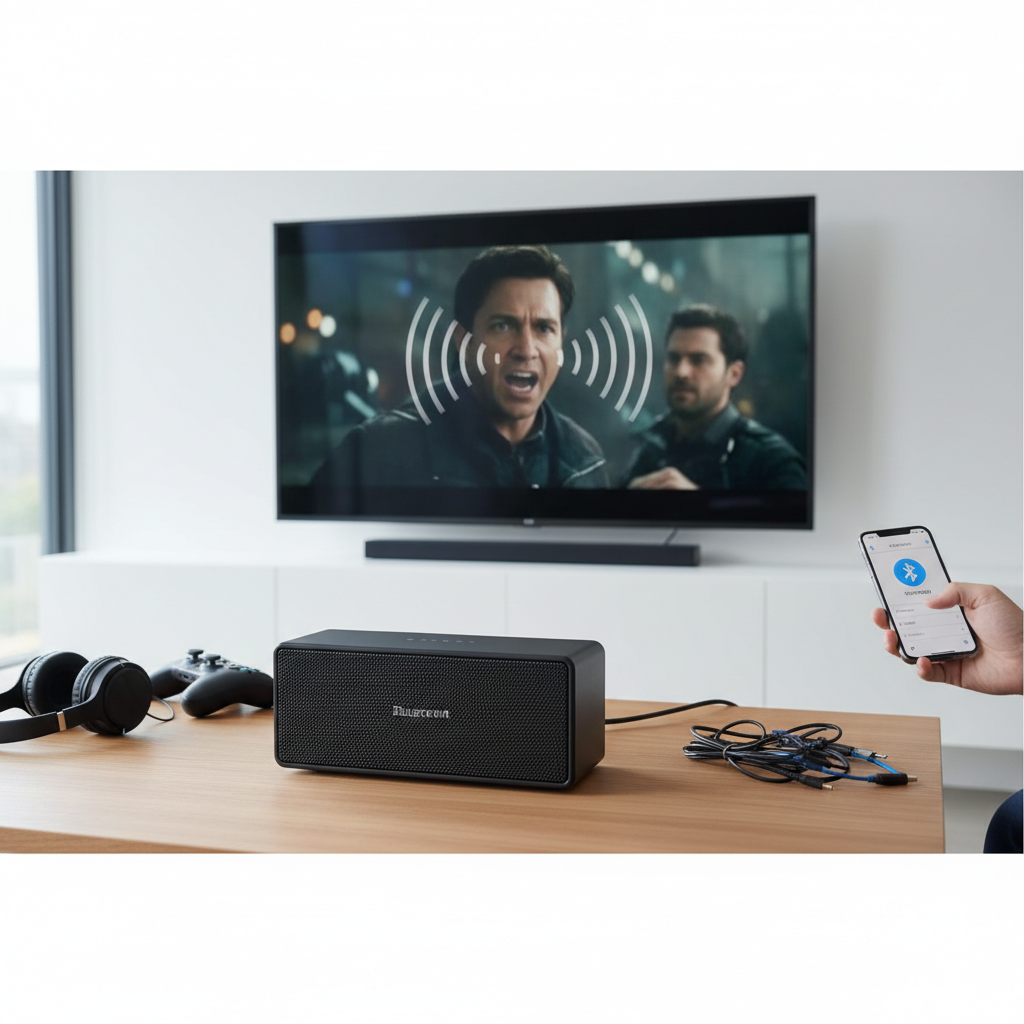
Bluetooth audio lag, often referred to as latency, is the delay between when an audio signal is sent from a source device (like your phone, tablet, or PC) and when it’s actually heard through your Bluetooth speaker. While some minimal latency is inherent in any wireless transmission due to the processes of encoding, transmitting, and decoding audio data, significant lag becomes perceptible and disruptive. When this delay exceeds roughly 100 milliseconds, it can cause a noticeable disconnect between visual and auditory cues, particularly when watching videos, playing games, or making video calls. The impact can range from slightly distracting to completely ruining your media consumption.
Common Causes of Bluetooth Speaker Lag
Understanding the root causes of audio lag is the first step toward effective troubleshooting. Several factors can contribute to Bluetooth audio delays:
Interference and Distance
|
Our Picks for the Best Bluetooth speaker in 2026
As an Amazon Associate I earn from qualifying purchases.
|
||
| Num | Product | Action |
|---|---|---|
| 1 | JBL FLIP 5, Waterproof Portable Bluetooth Speaker, Black, Small |

|
| 2 | Soundcore Boom 2 By Anker, Outdoor Speaker, 80W, Subwoofer, BassUp 2.0, 24H Playtime, IPX7 Waterproof, Floatable, RGB Lights, USB-C, Custom EQ, Bluetooth 5.3, Portable for Camping and Beach - Black |
|
| 3 | Bose SoundLink Flex Bluetooth Speaker (2nd Gen) - Portable Outdoor Speaker with Hi-Fi Audio, Waterproof and Dustproof, USB-C, Up to 12 Hours Battery Life, Twilight Blue - Limited Edition Color |
|
| 4 | BolaButty Bluetooth Speaker with HD Sound, Portable Wireless, IPX5 Waterproof, Up to 20H Playtime, TWS Pairing, BT5.3, for Home/Party/Outdoor/Beach, Electronic Gadgets, Birthday Gift (Black) |
|
| 5 | Portable Bluetooth Speaker, IPX7 Waterproof Wireless Speaker with 20W Loud Stereo Sound, 15H Playtime & Beat-Synced RGB Light, Small Outdoor Speaker for Shower, Pool, Beach, Hiking and Gifts |
|
| 6 | JBL Go 3 - Portable Mini Bluetooth Speaker, big audio and punchy bass, IP67 waterproof and dustproof, 5 hours of playtime, speaker for home, outdoor and travel (Black) |
|
| 7 | JBL Charge 6 - Portable Waterproof & Drop-Proof Bluetooth Speaker, Bold JBL Pro Sound with AI Sound Boost, 28Hrs of Playtime, Built-in powerbank & Comes with a Sturdy/Removable Carrying Strap (Black) |
|
| 8 | JBL Go 4 - Ultra-Portable, Waterproof and Dustproof Bluetooth Speaker, Big JBL Pro Sound with Punchy bass, 7-Hour Built-in Battery, Made in Part with Recycled Materials (Blue) |
|
| 9 | Monster S620 Bluetooth Speaker, Wireless Portable Outdoor Bluetooth Speakers, 60W True Wireless Stereo IPX8 Waterproof, Dual PairingBluetooth 5.4 Built-in Mic, Perfect for Home, Blue |
|
| 10 | Anker Soundcore 2 Portable Bluetooth Speaker, 12W Stereo Sound with Deep Bass, IPX7 Waterproof, 24-Hour Playtime, Built-in Mic, for Home, Outdoors & Travel |
|
Bluetooth operates on the 2.4 GHz radio frequency, a band shared by many other wireless devices, including Wi-Fi routers, microwaves, and cordless phones. This crowded spectrum can lead to signal interference, causing disruptions and delays in audio transmission. Similarly, increasing the distance between your source device and Bluetooth speaker, or having physical obstructions like walls and furniture in the signal path, can weaken the connection and introduce lag.
Outdated Drivers and Software
Just like any other hardware, Bluetooth modules in your devices rely on drivers and software to function correctly. Outdated, corrupted, or incompatible Bluetooth drivers on your computer, or old firmware on your speaker, can lead to inefficiencies in data processing, resulting in noticeable audio delays. Manufacturers frequently release updates to improve performance and fix bugs, including latency issues.
Bluetooth Version and Codecs
The version of Bluetooth technology your devices use plays a significant role in latency. Older Bluetooth versions (e.g., 2.0, 3.0, 4.0) generally have higher latency compared to newer iterations like Bluetooth 5.0 and above, which are designed for faster data transfer and improved efficiency. Additionally, audio codecs are crucial. Standard codecs like Subband Coding (SBC) compress audio significantly, which can introduce delays during encoding and decoding. Low-latency codecs, such as aptX Low Latency or aptX Adaptive, are specifically designed to minimize this delay, though both your source device and speaker must support them for these benefits to manifest.
Device Power and Performance
A low battery on your Bluetooth speaker or the transmitting device can impact its performance, leading to an unstable connection and increased audio lag. Many devices also have power-saving modes that might aggressively reduce background processes, including Bluetooth communication, to conserve energy, inadvertently causing delays.
Too Many Connected Devices/Overloaded Bluetooth List
Connecting multiple Bluetooth devices simultaneously to a single source can strain its wireless capabilities and bandwidth, leading to performance degradation and latency for all connected peripherals. Furthermore, an “overloaded” list of previously paired Bluetooth devices stored on your phone or computer can sometimes cause minor interference or resource consumption.
Audio Enhancements (PC Specific)
On Windows PCs, certain audio enhancement features designed to “improve” sound quality can sometimes add extra processing load, inadvertently introducing latency. These features, while well-intentioned, can complicate the audio signal path, causing delays.
Step-by-Step Solutions to Fix Audio Lag
Here’s a comprehensive guide to troubleshoot and fix audio lag on your Bluetooth speakers, categorized for easier navigation.
Basic Troubleshooting (Universal Steps)
Start with these straightforward solutions that often resolve common latency issues.
Restart Devices (Source & Speaker)
A simple restart can often clear temporary glitches and refresh connections.
- Turn off your Bluetooth speaker.
- Restart your source device (smartphone, tablet, PC, or TV).
- Turn your Bluetooth speaker back on.
- Reconnect the devices.
Re-pair Your Bluetooth Speaker
Sometimes, simply disconnecting and re-pairing the devices can resolve a stubborn lag.
- On your source device, go to Bluetooth settings.
- Find your speaker in the list of paired devices.
- Select “Forget” or “Unpair” the device.
- Put your Bluetooth speaker into pairing mode.
- Search for devices on your source and re-pair with your speaker.
Charge Your Speaker Fully
Ensure both your Bluetooth speaker and the source device have sufficient battery. Low power can degrade Bluetooth performance. Fully charge both devices and test again.
Reduce Distance & Clear Obstructions
Bluetooth works best within a clear line of sight.
- Bring your Bluetooth speaker closer to your source device, ideally within 10-30 feet.
- Remove any physical barriers like walls, furniture, or even your own body between the devices.
Minimize Interference
Identify and reduce sources of wireless interference.
- Turn off other 2.4 GHz devices that are not in use (e.g., other Bluetooth devices, cordless phones).
- If your Wi-Fi router operates on the 2.4 GHz band, consider switching it to the 5 GHz band if supported, as 5 GHz Wi-Fi does not interfere with Bluetooth.
- Move away from microwave ovens or other electronics that might emit strong radio frequencies.
Software & Settings Adjustments (Platform Specific)
Depending on your source device, you may have specific settings to tweak.
For PCs (Windows)
Update Bluetooth Drivers:
Outdated drivers are a common culprit.
- Press
Win + Xand selectDevice Manager. - Expand the “Bluetooth” section.
- Right-click on your Bluetooth adapter and select “Update driver.”
- Choose “Search automatically for updated driver software.”
- Restart your PC after the update. You might also check your PC or Bluetooth adapter manufacturer’s website for the latest drivers.
Disable Audio Enhancements:
- Right-click the sound icon in your taskbar and select “Sound settings.”
- Under “Output,” find your Bluetooth speaker and click on its properties or “More sound settings.”
- Go to the “Enhancements” tab.
- Check the box for “Disable all enhancements.”
- Click “Apply” and then “OK.”
Check Windows Audio Service:
Ensure the audio service is running correctly.
- Press
Win + R, typeservices.msc, and press Enter. - Find “Windows Audio” in the list.
- Double-click it and ensure “Startup type” is set to “Automatic.” If it’s not running, click “Start.”
For Android Devices
Turn Off Power Saving Mode:
Power-saving features can throttle Bluetooth performance.
- Go to your phone’s “Settings.”
- Tap on “Battery” or “Battery and device care.”
- Look for “Power saving mode” or similar options and disable it.
Change Bluetooth Audio Codec (Developer Options):
Accessing developer options allows you to experiment with codecs.
- Go to “Settings” > “About phone” > “Software information.”
- Tap “Build number” seven times to unlock Developer options.
- Go back to “Settings” and find “Developer options.”
- Scroll down to the “Networking” section.
- Tap “Bluetooth Audio Codec.”
- Try selecting a low-latency codec like “Qualcomm aptX” or “AAC” if available, instead of the default SBC. Note that both your phone and speaker must support the chosen codec.
Use Third-Party Apps:
Some Android devices (e.g., Samsung Galaxy phones) can benefit from apps like “Sound Assistant” (available on the Galaxy Store). This app often includes a “Bluetooth Metronome” feature that allows for fine-tuning of audio delay to achieve better synchronization, especially for video content.
For TVs/Other Devices
Adjust Audio Sync Settings:
Many smart TVs, soundbars, and streaming devices have built-in audio delay compensation settings.
- Navigate to your TV’s or device’s audio settings.
- Look for “Audio Delay,” “Lip Sync,” or “A/V Sync” options.
- Adjust the delay value (usually in milliseconds) until the audio and video are synchronized.
Update Device Software:
Check your TV, streaming device, or speaker manufacturer’s website for the latest firmware updates and install them. These updates often include performance improvements and bug fixes.
Hardware & Advanced Solutions
If software tweaks aren’t enough, consider these hardware-focused approaches.
Upgrade to Newer Bluetooth Versions
If your current devices use an older Bluetooth standard (e.g., 4.0 or earlier), upgrading to a speaker or source device with Bluetooth 5.0 or newer can significantly reduce latency due to improved data transfer speeds and efficiency.
Utilize Low-Latency Codecs (aptX LL, aptX Adaptive)
For the lowest possible latency, especially crucial for gaming and critical video consumption, invest in both a source device and a Bluetooth speaker that explicitly support low-latency codecs like aptX Low Latency (aptX LL) or aptX Adaptive. These codecs are designed to transmit audio with minimal delay, often around 40-50 milliseconds, which is generally imperceptible.
Consider an External Bluetooth Transmitter/Receiver
If your current setup doesn’t support low-latency codecs, you can add this capability. Purchase an external Bluetooth transmitter (for your source device) and a receiver (for your speaker, if it has an AUX input) that both support aptX LL. Connect the transmitter to your audio source (e.g., TV’s optical or 3.5mm out) and pair it with an aptX LL-compatible Bluetooth speaker.
Opt for a Wired Connection (When Applicable)
While this defeats the purpose of wireless, for situations where absolutely no latency is acceptable (e.g., professional audio monitoring, competitive gaming), a wired connection remains the most reliable solution. Many Bluetooth speakers also offer an auxiliary (AUX) input, allowing you to connect them directly with an audio cable.
Choosing the Right Bluetooth Speaker for Minimal Latency
When purchasing a new Bluetooth speaker, keep latency in mind:
- Bluetooth Version: Prioritize speakers with Bluetooth 5.0 or higher for better efficiency and range.
- Codec Support: Look for explicit support for low-latency codecs like aptX Low Latency or aptX Adaptive. Ensure your primary source devices also support these codecs.
- Reviews: Check product reviews, especially from tech enthusiasts or audiophiles, for mentions of latency performance.
“Many users overlook the impact of codecs and Bluetooth versions on audio latency. Upgrading to devices that support aptX Low Latency can be a game-changer for a seamless audio-visual experience.” – Admin of ReviewGE, Bluetooth Speaker Technician
Conclusion
Bluetooth audio lag, while a common annoyance, is a problem with numerous solutions. By systematically troubleshooting the potential causes, from simple restarts and re-pairing to updating drivers, optimizing device settings, and considering hardware upgrades, you can significantly improve your listening experience. The key is to address interference, ensure up-to-date software, and leverage low-latency technologies where possible. Don’t let a slight delay diminish your enjoyment of wireless audio. With the right adjustments, your Bluetooth speakers can deliver perfectly synchronized sound, whether you’re watching your favorite series, immersed in a gaming world, or simply enjoying music.
What steps will you take today to eliminate audio lag and unlock the full potential of your Bluetooth speaker?
Frequently Asked Questions
What is the ideal Bluetooth version for low latency?
Bluetooth 5.0 and newer versions generally offer lower latency compared to older standards. They provide faster data transfer speeds and improved connection stability, which are crucial for minimizing audio delay. However, support for low-latency codecs is equally important.
Can Wi-Fi interfere with Bluetooth speakers?
Yes, Wi-Fi can interfere with Bluetooth speakers, especially if your Wi-Fi router operates on the 2.4 GHz band, which overlaps with Bluetooth’s frequency. Switching your Wi-Fi to the 5 GHz band or ensuring a clear separation between your Wi-Fi router and Bluetooth devices can help mitigate this.
How do I know if my device supports aptX Low Latency?
To determine if your device supports aptX Low Latency, check its product specifications or the manufacturer’s website. Both the transmitting device (e.g., phone, PC) and the receiving device (your Bluetooth speaker) must support aptX LL for the low-latency benefits to be realized.
Is there a specific setting for gaming to reduce Bluetooth lag?
For gaming, besides ensuring your devices support aptX Low Latency, you should disable any power-saving modes on your source device and minimize wireless interference. On Android, checking Developer Options for codec settings can also be beneficial. For critical gaming, a wired connection remains the most reliable.