Have you ever experienced frustratingly slow internet speeds, dropped video calls, or buffering during your favorite streaming moments? You’re not alone. In today’s hyper-connected world, a seamless internet connection is less of a luxury and more of a necessity. Often, the hidden culprit behind these common annoyances is WiFi interference. This pervasive issue can silently degrade your network’s performance, turning an otherwise robust connection into a source of constant irritation.
This comprehensive guide will demystify WiFi interference, exploring what it is, where it comes from, and most importantly, how you can effectively combat it to ensure a stable and fast wireless experience. We’ll dive into practical strategies, from optimizing your router’s location to leveraging advanced technologies, empowering you to reclaim control over your digital environment.
Understanding WiFi Interference: What Is It and Why Does It Happen?
WiFi signals are essentially radio waves, invisible streams of information transmitted between your router and devices like laptops or smartphones. These signals operate on specific frequency bands, primarily 2.4 GHz and 5 GHz, traveling through the air to establish connections. When other devices or environmental factors disrupt these radio waves, you experience WiFi interference.
This disruption can manifest in several ways:
- Co-channel Interference: Occurs when multiple WiFi networks, perhaps from your neighbors, operate on the same channel. Your router and a neighbor’s router essentially “talk over” each other, leading to signal overlap and requiring devices to retransmit data, which slows everything down.
- Adjacent Channel Interference: This happens when networks use channels that are very close in frequency, even if not exactly the same. The signals bleed into each other, causing distortion and affecting performance.
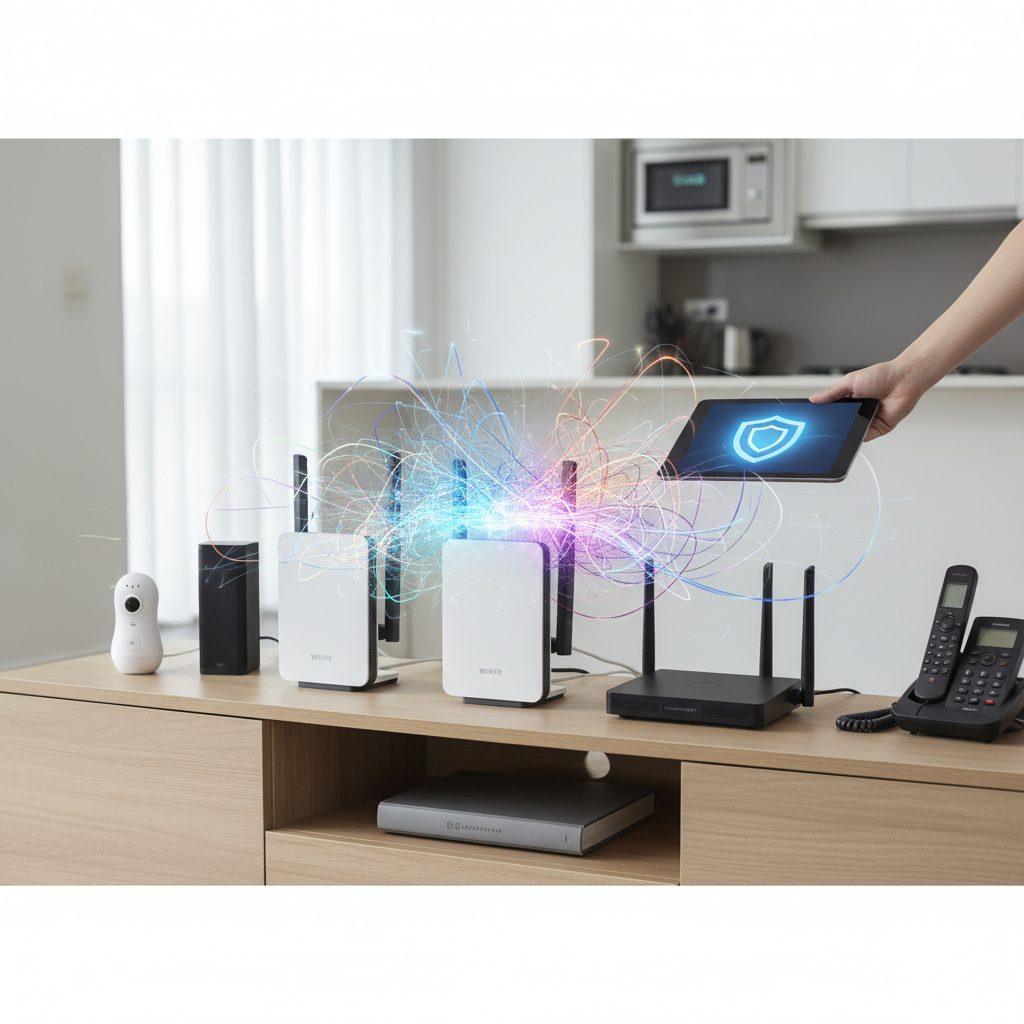
- Non-WiFi Interference: Many other electronic devices, beyond just WiFi, emit radio waves in the same frequency bands, creating “noise” that drowns out your router’s signal.
Ultimately, interference leads to a weaker signal and slower internet speeds, making your network less reliable.
Common Sources of WiFi Interference
Understanding the origins of interference is the first step toward mitigating it. These sources can be broadly categorized into other wireless networks, non-WiFi electronics, and physical obstructions.
Other WiFi Networks
|
Our Picks for the Best Bluetooth speaker in 2026
As an Amazon Associate I earn from qualifying purchases.
|
||
| Num | Product | Action |
|---|---|---|
| 1 | Soundcore Boom 2 By Anker, Outdoor Speaker, 80W, Subwoofer, BassUp 2.0, 24H Playtime, IPX7 Waterproof, Floatable, RGB Lights, USB-C, Custom EQ, Bluetooth 5.3, Portable for Camping and Beach - Black |

|
| 2 | JBL FLIP 5, Waterproof Portable Bluetooth Speaker, Black, Small |
|
| 3 | Bose SoundLink Flex Bluetooth Speaker (2nd Gen) - Portable Outdoor Speaker with Hi-Fi Audio, Waterproof and Dustproof, USB-C, Up to 12 Hours Battery Life, Twilight Blue - Limited Edition Color |
|
| 4 | Anker Soundcore 2 Portable Bluetooth Speaker, 12W Stereo Sound with Deep Bass, IPX7 Waterproof, 24-Hour Playtime, Built-in Mic, for Home, Outdoors & Travel |
|
| 5 | Monster S620 Bluetooth Speaker, Wireless Portable Outdoor Bluetooth Speakers, 60W True Wireless Stereo IPX8 Waterproof, Dual PairingBluetooth 5.4 Built-in Mic, Perfect for Home, Blue |
|
| 6 | JBL Go 4 - Ultra-Portable, Waterproof and Dustproof Bluetooth Speaker, Big JBL Pro Sound with Punchy bass, 7-Hour Built-in Battery, Made in Part with Recycled Materials (Blue) |
|
| 7 | JBL Charge 6 - Portable Waterproof & Drop-Proof Bluetooth Speaker, Bold JBL Pro Sound with AI Sound Boost, 28Hrs of Playtime, Built-in powerbank & Comes with a Sturdy/Removable Carrying Strap (Black) |
|
| 8 | Portable Bluetooth Speaker, IPX7 Waterproof Wireless Speaker with 20W Loud Stereo Sound, 15H Playtime & Beat-Synced RGB Light, Small Outdoor Speaker for Shower, Pool, Beach, Hiking and Gifts |
|
| 9 | BolaButty Bluetooth Speaker with HD Sound, Portable Wireless, IPX5 Waterproof, Up to 20H Playtime, TWS Pairing, BT5.3, for Home/Party/Outdoor/Beach, Electronic Gadgets, Birthday Gift (Black) |
|
| 10 | JBL Go 3 - Portable Mini Bluetooth Speaker, big audio and punchy bass, IP67 waterproof and dustproof, 5 hours of playtime, speaker for home, outdoor and travel (Black) |
|
In densely populated areas like apartment buildings or busy offices, your network is constantly competing with numerous other WiFi networks. Each neighbor’s router, extending its signal, contributes to the overall “noise” level, especially in the crowded 2.4 GHz band. Multiple access points within your own home, if not configured correctly, can also interfere with each other.
Non-WiFi Devices
Many everyday household and office devices operate on similar radio frequencies as WiFi, particularly the 2.4 GHz band, making them prime culprits for interference.
- Bluetooth Devices: Headphones, speakers, and other Bluetooth accessories typically use the 2.4 GHz band, directly clashing with your WiFi signal.
- Microwave Ovens: These kitchen staples are notorious for causing significant interference. When a microwave is in use, it can dramatically reduce WiFi speeds, sometimes by half, as it emits signals in the same 2.4 GHz frequency range.
- Cordless Phones: Older cordless phone systems, especially those operating on the 2.4 GHz band, can be a major source of disruption.
- Wireless Cameras and Baby Monitors: Many home security cameras and baby monitors use wireless frequencies that can interfere with your WiFi.
- Other Electronics: Fluorescent lights, older wireless peripherals, Zigbee devices, and even some unshielded power or video cables can generate electromagnetic interference. Electrical load centers (fuse boxes) and power lines can also contribute to this ambient noise.
Physical Obstructions and Environmental Factors
The physical environment around your router and devices plays a critical role in signal propagation.
- Walls and Building Materials: Dense materials like concrete, bricks, and metal are significant signal blockers. Even plaster, drywall, and furniture can absorb or reflect radio waves, weakening the signal.
- Water: Large bodies of water, such as aquariums or water tanks, can absorb WiFi signals. Surprisingly, even the human body can weaken a signal by about 3 dB.
- Mirrors: The reflective metal backing behind mirrors can effectively block electromagnetic waves from routers, causing “very high” interference.
- Environmental Factors: External elements like metal panels in roofs or walls, pine trees, and even sunspots or solar activity can impact WiFi signals.
Impact of WiFi Interference on Your Network
The consequences of WiFi interference are often experienced as a frustrating slowdown or complete loss of connectivity. You might notice:
- Slow Internet Speeds: Websites load sluggishly, and downloads take an eternity.
- Dropped Connections: Devices frequently disconnect from the network, requiring constant reconnection.
- High Latency and Packet Loss: This severely impacts real-time applications like online gaming and video conferencing, leading to lag and choppy audio/video.
- Reduced Range and Reliability: Your WiFi signal may not reach as far as it should, or it might be highly inconsistent in certain areas, creating “dead zones.”
- Difficulty Pairing Bluetooth Devices: Since both often use the 2.4 GHz band, interference can make it challenging for Bluetooth devices to connect properly.
Strategies to Prevent and Minimize WiFi Interference
Effectively managing WiFi interference involves a multi-pronged approach, combining strategic placement, network optimization, and equipment upgrades.
Optimizing Your Router Placement
The physical location of your router is paramount to minimizing interference.
- Central Location: Place your router in a central, open area of your home, equidistant from all your devices. This ensures the signal has the shortest path to travel and reduces the number of obstacles it needs to penetrate.
- Elevated Position: Positioning your router higher up, like on a shelf or wall mount, can help broadcast the signal over furniture and other obstructions.
- Away from Obstructions: Keep your router clear of dense walls, metal objects (like filing cabinets or refrigerators), large appliances, mirrors, and bodies of water (aquariums). Also, avoid placing it near other electronic devices that could cause interference, such as microwaves and cordless phones.
Choosing the Right WiFi Channel
WiFi networks operate on various channels. In the crowded 2.4 GHz band, channels 1, 6, and 11 are considered “non-overlapping” in most regions and are ideal for minimizing co-channel interference.
- Use a WiFi Analyzer Tool: Free apps are available for smartphones and computers that can scan your environment and show you which WiFi channels are most congested. Switch your router to a less-used channel.
- Utilize the 5 GHz Band: The 5 GHz band offers more channels and is generally less crowded than 2.4 GHz, leading to less interference and faster speeds. However, 5 GHz signals have a shorter range and are less effective at penetrating walls and objects.
Upgrading Your Equipment
Sometimes, older equipment is simply not up to the task of handling a crowded wireless environment.
- Dual-Band or Tri-Band Routers: These routers operate on both 2.4 GHz and 5 GHz frequencies simultaneously, allowing you to connect devices to the less congested band.
- Mesh WiFi Systems: For larger homes or those with significant dead zones, a mesh WiFi system uses multiple nodes to create a seamless network, extending coverage and reducing interference by intelligently routing traffic.
- Newer WiFi Standards (Wi-Fi 6/6E): Modern routers with Wi-Fi 6 (802.11ax) or Wi-Fi 6E standards offer improved performance in congested environments and Wi-Fi 6E introduces a new 6 GHz band, which is significantly less crowded, though it requires compatible devices.
Reducing Interference from Other Devices
Managing non-WiFi interference requires identifying the culprits and taking action.
- Move Interfering Devices: If possible, relocate microwaves, cordless phone bases, baby monitors, or any other known interfering electronics away from your router and primary WiFi devices.
- Use Wired Connections: For stationary devices like desktop computers, smart TVs, or gaming consoles, use Ethernet cables instead of WiFi. This not only eliminates their potential as sources of interference but also frees up wireless bandwidth for mobile devices.
- Power Off Unused Devices: Turn off or unplug electronics that are not in use but might be broadcasting signals, such as old smart home hubs or Bluetooth speakers.
Firmware Updates and Router Settings
Keeping your router’s software updated is crucial for optimal performance and security.
- Update Your Router’s Firmware: Manufacturers frequently release firmware updates that improve performance, address bugs, and enhance interference management. Regularly check your router manufacturer’s website for available updates.
- Adjust Channel Bandwidth: In crowded 2.4 GHz environments, reducing the channel bandwidth from 40 MHz to 20 MHz can improve stability, though it may slightly reduce maximum theoretical speed. Similarly, in 5 GHz, experimenting with 20/40 MHz bandwidths can offer more stability.
“One of the easiest ways to reduce Wi-Fi interference is to make sure your router is placed in an optimal location. Avoid placing it near metal objects, walls, or other electronic devices that can cause interference.” – ACT Fibernet Technical Team, Network Optimization Specialists
Top Tips for Troubleshooting WiFi Interference Issues
When interference strikes, a systematic approach to troubleshooting can save you a lot of headache.
- Restart Your Router and Devices: A simple reboot can often resolve temporary glitches and clear up minor interference issues.
- Use a WiFi Analyzer App: These tools are invaluable for visualizing your network environment. They can help you identify congested channels and rogue networks, giving you clear data to inform channel changes.
- Test Signal Strength: Walk around your home with a signal testing app on your smartphone or laptop. This can help you pinpoint weak zones and dead spots, and potentially identify where interference is strongest.
- Isolate the Problem: If you suspect a specific device is causing interference (e.g., your microwave), try turning it off temporarily and observe if your WiFi performance improves.
- Check for Firmware Updates: Ensure your router and potentially your WiFi adapters on devices have the latest firmware.
- Run Network Troubleshooters: Operating systems like Windows include built-in network troubleshooters that can diagnose and suggest fixes for common connectivity issues.
The Cost of Poor WiFi: How Interference Impacts Your Digital Life
The hidden costs of unaddressed WiFi interference extend beyond mere inconvenience. For professionals working from home, it can mean lost productivity, interrupted video conferences, and missed deadlines. For students, it can hinder online learning and research. For families, it can lead to frustrating movie nights, stuttering gaming sessions, and general digital discontent. Reliable WiFi is the backbone of modern living, and interference undermines this essential utility, causing stress and impacting daily routines.
Conclusion
WiFi interference is an undeniable reality in our increasingly wireless world, but it doesn’t have to dictate your internet experience. By understanding its causes—from neighboring networks and common household appliances to physical barriers—you gain the knowledge to combat it effectively. Implementing strategies like optimal router placement, intelligent channel selection, equipment upgrades, and vigilant troubleshooting can significantly enhance your network’s speed and reliability. A proactive approach ensures a smoother, more enjoyable digital life, free from the frustrations of a patchy connection. What steps will you take today to optimize your home WiFi environment?
Câu Hỏi Thường Gặp
What is the best WiFi channel to avoid interference?
For the 2.4 GHz band, channels 1, 6, and 11 are generally recommended because they are non-overlapping. Using a WiFi analyzer app can help you identify the least congested channel in your specific environment, as optimal choice can vary based on your surroundings.
Can Bluetooth interfere with WiFi?
Yes, Bluetooth devices can interfere with WiFi, particularly if your WiFi network is operating on the 2.4 GHz band. Both technologies use this frequency range, leading to potential signal clashes and reduced performance for either or both. Using the 5 GHz WiFi band can help avoid this conflict.
Do smart home devices interfere with WiFi?
Many smart home devices operate on the 2.4 GHz WiFi band or other wireless protocols like Zigbee, which can share similar frequencies. While typically designed to coexist, a large number of smart devices, especially older ones, can contribute to network congestion and interference, impacting your overall WiFi performance.
How can I check for WiFi interference?
You can check for WiFi interference using free WiFi analyzer applications available for smartphones and computers. These tools scan nearby networks, display signal strengths, and show channel usage, helping you visualize congestion and identify potential sources of interference in your area.