Few things are as frustrating as settling in to enjoy your favorite music or a crucial video call, only to be met with an annoying crackling sound. This common audio issue can quickly diminish your listening experience, turning what should be clear, crisp sound into an irritating static-filled mess. But what causes this unwelcome noise, and more importantly, how can you make it disappear?
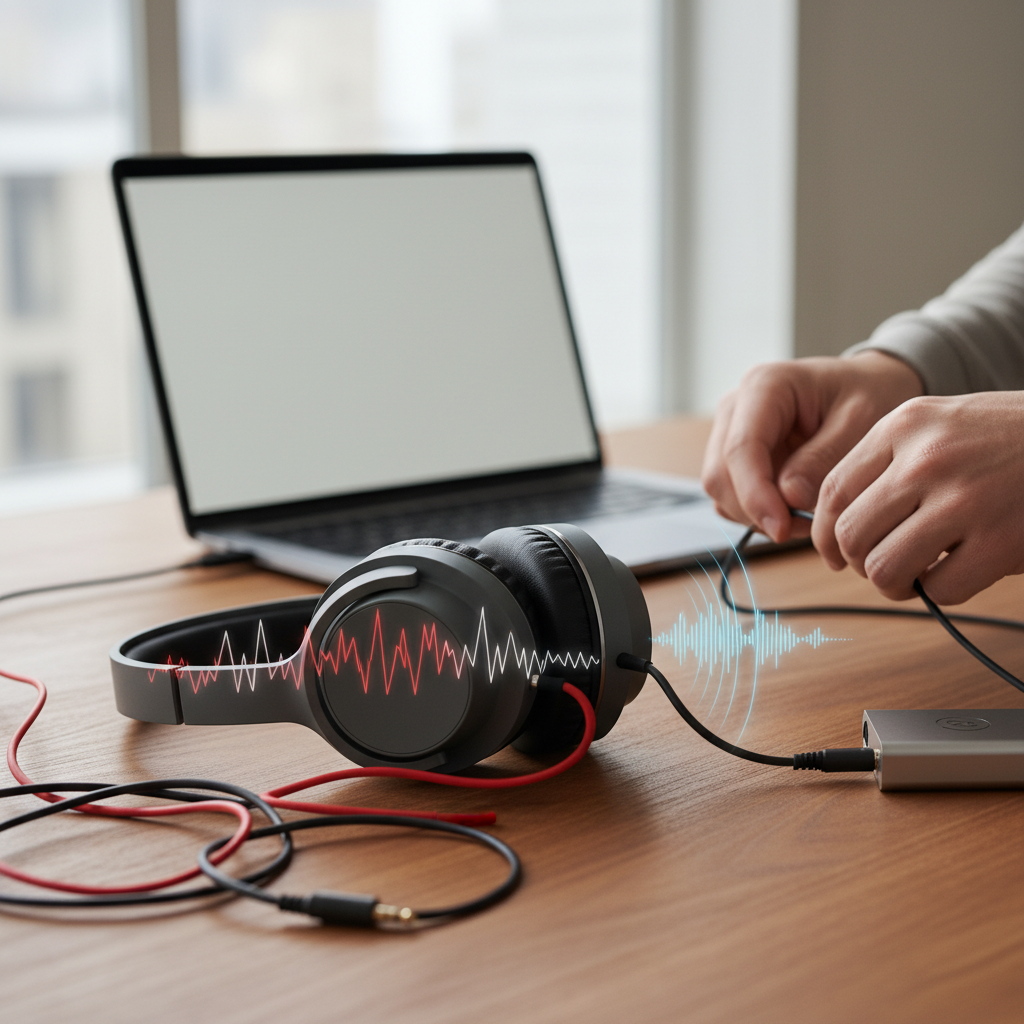
This comprehensive guide will demystify crackling audio distortion, exploring its various culprits from simple cable woes to more intricate component failures. We’ll provide you with a practical, step-by-step troubleshooting process, empowering you to diagnose and fix the problem, restoring pristine sound to your audio setup.
Understanding Crackling Audio Distortion
Crackling audio distortion is characterized by sharp, intermittent popping noises that disrupt the continuous flow of sound. It often sounds like static or tiny, irregular explosions, jarring your listening experience. This specific type of noise is distinct from a continuous, low-frequency hum or buzzing, and also differs from general audio distortion, which typically involves an alteration of the original sound rather than a sudden interruption.
At its core, crackling usually signifies an interrupted audio signal. Sound systems convert electrical currents into sound waves that move speaker drivers in smooth, wavelike patterns. When this electrical signal is suddenly broken or interfered with, the speaker driver’s movement abruptly stops, then attempts to restart, leading to that characteristic clicking or crackling sound. Think of it as a momentary loss of connection, causing an audible jolt.
Common Causes of Crackling Audio
Pinpointing the exact cause of crackling audio can sometimes feel like searching for a needle in a haystack, as numerous factors can contribute to this issue. However, by understanding the most frequent culprits, you can systematically narrow down the possibilities.
Hardware-Related Issues
- Loose or Damaged Cables: One of the most common reasons for crackling is a faulty connection. This includes power cables, audio cables (such as RCA, XLR, 3.5mm jacks), or even the internal wiring within your speakers. Cables can become loose, worn, frayed, or damaged over time, leading to an inconsistent signal flow.
- Dirty Connections and Ports: Dust, grime, and even rust can accumulate on the metal contacts of your cables, ports, and jacks. This buildup creates resistance and impedes the proper transmission of the audio signal, causing crackles and pops.
- Speaker Overload: Pushing your speakers beyond their recommended power handling capacity can lead to distortion and crackling. If the audio source volume is too high, or the amplifier is overdriving the speakers, the drivers can struggle to reproduce the sound accurately.
- Damaged Speaker Components: The physical parts of your speaker can degrade. A torn or warped speaker cone, loose solder joints, or damaged internal wiring can all cause crackling sounds as the driver struggles to vibrate smoothly.
- Amplifier Problems: The amplifier is the heart of many audio systems. Issues within its circuitry, such as a failing component or distortion in the audio signal itself before it reaches the speakers, can manifest as crackling.
- Electrical Interference: Nearby electronic devices, like Wi-Fi routers, cell phones, fluorescent lights, or even faulty electrical outlets, can emit electromagnetic signals that interfere with your audio cables and equipment, introducing unwanted noise.
- Faulty Audio Equipment: The issue might not be with the speaker itself but with the source device, mixer, audio interface, or even your computer’s sound card.
|
Our Picks for the Best Bluetooth speaker in 2026
As an Amazon Associate I earn from qualifying purchases.
|
||
| Num | Product | Action |
|---|---|---|
| 1 | Anker Soundcore 2 Portable Bluetooth Speaker, 12W Stereo Sound with Deep Bass, IPX7 Waterproof, 24-Hour Playtime, Built-in Mic, for Home, Outdoors & Travel |

|
| 2 | JBL Charge 6 - Portable Waterproof & Drop-Proof Bluetooth Speaker, Bold JBL Pro Sound with AI Sound Boost, 28Hrs of Playtime, Built-in powerbank & Comes with a Sturdy/Removable Carrying Strap (Black) |
|
| 3 | JBL Go 3 - Portable Mini Bluetooth Speaker, big audio and punchy bass, IP67 waterproof and dustproof, 5 hours of playtime, speaker for home, outdoor and travel (Black) |
|
| 4 | JBL Go 4 - Ultra-Portable, Waterproof and Dustproof Bluetooth Speaker, Big JBL Pro Sound with Punchy bass, 7-Hour Built-in Battery, Made in Part with Recycled Materials (Blue) |
|
| 5 | Soundcore Boom 2 By Anker, Outdoor Speaker, 80W, Subwoofer, BassUp 2.0, 24H Playtime, IPX7 Waterproof, Floatable, RGB Lights, USB-C, Custom EQ, Bluetooth 5.3, Portable for Camping and Beach - Black |
|
| 6 | Monster S620 Bluetooth Speaker, Wireless Portable Outdoor Bluetooth Speakers, 60W True Wireless Stereo IPX8 Waterproof, Dual PairingBluetooth 5.4 Built-in Mic, Perfect for Home, Blue |
|
| 7 | JBL FLIP 5, Waterproof Portable Bluetooth Speaker, Black, Small |
|
| 8 | BolaButty Bluetooth Speaker with HD Sound, Portable Wireless, IPX5 Waterproof, Up to 20H Playtime, TWS Pairing, BT5.3, for Home/Party/Outdoor/Beach, Electronic Gadgets, Birthday Gift (Black) |
|
| 9 | Portable Bluetooth Speaker, IPX7 Waterproof Wireless Speaker with 20W Loud Stereo Sound, 15H Playtime & Beat-Synced RGB Light, Small Outdoor Speaker for Shower, Pool, Beach, Hiking and Gifts |
|
| 10 | Bose SoundLink Flex Bluetooth Speaker (2nd Gen) - Portable Outdoor Speaker with Hi-Fi Audio, Waterproof and Dustproof, USB-C, Up to 12 Hours Battery Life, Twilight Blue - Limited Edition Color |
|
Software and System-Related Issues (Common for Computers and Digital Devices)
- Outdated or Corrupt Audio Drivers: Drivers are essential software that allows your operating system to communicate with your audio hardware. Outdated, incorrect, or corrupt drivers can lead to a host of audio problems, including crackling and popping.
- Incorrect Audio Settings: In operating systems like Windows, incorrect sample rates or bit depths configured for your audio device can sometimes cause crackling. Additionally, certain “enhancements” or sound effects can introduce latency or processing issues that result in audible artifacts.
- High DPC Latency: On Windows PCs, high Deferred Procedure Call (DPC) latency, often caused by inefficient drivers (not necessarily audio drivers, but any system driver), can prevent the audio buffer from being filled quickly enough, leading to dropouts and crackling.
Environmental and Specific Scenario Causes
- Atmospheric Pressure Changes (Specific Devices): In rare cases, particularly with certain smartphone models (like some Samsung phones), significant changes in atmospheric pressure (e.g., after a flight) can create internal pressure differences that affect the speaker’s performance, resulting in crackling.
- Vinyl Playback Issues: For turntables, crackling can often stem from static electricity buildup on records, dust and debris in the grooves, or a worn-out or dirty stylus (needle) and cartridge.
Step-by-Step Guide to Fixing Crackling Audio
Troubleshooting crackling audio requires a methodical approach, starting with the simplest and most common solutions. Work through these steps until you identify and resolve the problem.
1. Check and Secure All Connections
This is often the quickest fix.
- Unplug and Re-plug: Completely disconnect and then firmly re-plug all power and audio cables connected to your speakers, amplifier, and audio source (computer, phone, mixer, etc.). Ensure they are seated snugly.
- Inspect Cables: Carefully examine each cable for any signs of wear, cuts, kinks, or frays. If you find any damage, replace the cable immediately. If you have spare cables, try swapping them out to see if the issue resolves, indicating a faulty cable.
- Verify Source Connections: Ensure that all connections at the audio source (e.g., your computer’s audio jack, mixer outputs, or amplifier inputs) are also secure and free from obstruction.
2. Clean Speakers and Connectors
Dust and grime are silent saboteurs of good audio.
- Power Down: Always switch off and unplug all your audio devices before cleaning.
- Speaker Cones: Use a soft, lint-free cloth or a can of compressed air to gently remove any dust or debris from your speaker cones and grilles. Be very careful not to push on the delicate speaker material.
- Connectors: For audio jacks, ports, and cable ends, use a microfiber cloth or cotton swabs lightly dampened with isopropyl alcohol (ensure it’s completely dry before reconnecting). If you notice rust, a specialized electronic contact cleaner or deoxidizer may be necessary.
3. Adjust Volume Levels and Prevent Overload
Overdriving your speakers is a common source of distortion.
- Lower Volume: Reduce the master volume on your amplifier or audio source. If the crackling stops, you might have been pushing your speakers too hard.
- Check Power Ratings: Consult your speaker’s manual for its recommended power handling capacity. Ensure your amplifier’s output does not exceed this rating. Maintain a balanced gain structure throughout your audio chain to prevent clipping.
4. Address Software and Driver Issues (for Computers/Digital Devices)
If you’re experiencing crackling from a computer or digital audio device, software is often the culprit.
- Update Audio Drivers:
- Windows: Go to Device Manager, expand “Sound, video and game controllers,” right-click your audio device, and select “Update driver.” You might also need to visit your motherboard or sound card manufacturer’s website for the latest drivers, as Windows Update may not always provide the most current versions.
- Mac: Ensure your macOS is up to date, as audio drivers are typically integrated with the system.
- Adjust Audio Settings:
- Windows: Right-click the speaker icon in the taskbar, select “Sound Settings” or “Sounds,” then go to the “Playback” tab, select your device, click “Properties,” and then the “Advanced” tab. Experiment with changing the “Default Format” (e.g., try 16-bit, 44100 Hz “CD Quality” if it’s set higher). Also, go to the “Enhancements” tab and disable all sound effects.
- Restart Your Device: After updating drivers or changing settings, always perform a full system restart.
5. Minimize Electrical Interference
Interference can introduce subtle, yet annoying, crackles.
- Relocate Devices: Move Wi-Fi routers, cell phones, charging cables, and other electronics away from your audio equipment and cables.
- Shielded Cables: Consider using higher-quality shielded audio cables, which are designed to resist electromagnetic interference.
- Power Conditioning: A power conditioner or surge protector with noise filtering can help clean up the electrical supply to your audio equipment.
6. Inspect for Physical Damage
This step may require a closer look, and potentially professional help.
- Speaker Cone Inspection: Gently examine the speaker cones (the movable part that produces sound) for any visible tears, punctures, dents, or signs of dry rot. Even small imperfections can cause crackling.
- Internal Components (Caution): If you are comfortable and knowledgeable about electronics, you might carefully open a speaker to check for loose internal wires or detached solder joints. However, if you’re unsure, it’s best to consult a professional.
7. Troubleshooting Specific Scenarios
- Vinyl Playback:
- Clean Records: Use a dedicated record cleaning solution and a microfiber anti-static cloth to remove dust and static buildup from your vinyl.
- Stylus/Cartridge: Carefully inspect your turntable’s stylus (needle) for dirt or damage. Use a specialized stylus brush to clean it. If it’s worn out, replacing the cartridge or stylus can significantly improve sound quality.
- Smartphones with Atmospheric Pressure Issues: For specific phones that might suffer from internal pressure imbalances (like some Samsung models), briefly opening and then re-closing the SIM card slot can sometimes equalize the pressure and resolve the crackling.
When to Seek Professional Help
While many crackling audio issues can be resolved with DIY troubleshooting, there are times when professional intervention is necessary. If you’ve diligently worked through all the above steps and the crackling persists, or if you suspect internal damage to components like your amplifier or speaker drivers, it’s wise to consult an experienced audio technician. They possess the specialized tools and expertise to diagnose complex issues and perform delicate repairs that might be beyond the scope of home troubleshooting.
Conclusion
Crackling audio distortion is a common, yet often fixable, problem that can arise from a myriad of sources, ranging from loose cables and dusty connections to complex driver issues or even physical damage to your audio equipment. By systematically checking your connections, ensuring cleanliness, optimizing software settings, and addressing potential interference, you can often restore your sound system to its intended clarity. Remember, patience and a methodical approach are your best tools in this diagnostic journey.
What specific troubleshooting step finally eliminated crackling audio from your setup?