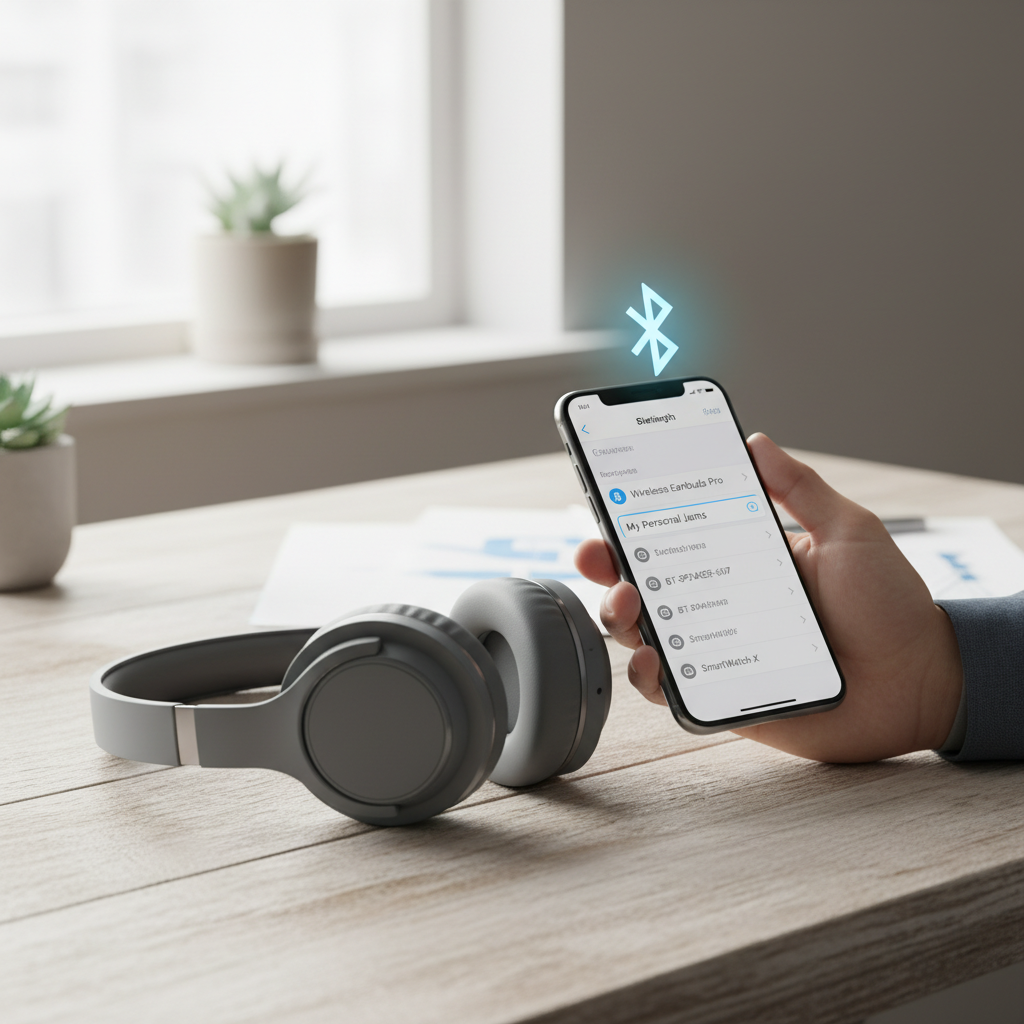
Opening your Bluetooth settings only to be met with a confusing list of generic names like “BT-Speaker-007” or “Wireless Earbuds Pro” can be a frustrating experience. In a world brimming with wireless gadgets, identifying the right device quickly is key to a seamless audio experience or efficient data transfer. Fortunately, the solution is simple: renaming your Bluetooth devices. This guide will walk you through the straightforward process of giving your Bluetooth accessories a personal touch, making them easy to spot and connect to across all your major operating systems.
Why Renaming Your Bluetooth Devices Matters
With an ever-growing array of Bluetooth-enabled products in our daily lives—from headphones and smartwatches to speakers and car systems—the default factory names often fall short. They can be cryptic, identical across multiple units from the same brand, or simply unmemorable. Renaming offers several significant advantages:
- Clarity and Organization: A personalized name like “My Office Headphones” or “Living Room Speaker” instantly tells you what you’re connecting to, eliminating guesswork.
- Faster Identification: When you have several similar devices, unique names allow for quicker selection, saving precious seconds when you just want to get your music playing or transfer files.
- Personalization: Giving your devices unique, custom names makes them feel more like your own, enhancing your overall user experience. It allows for a more organized digital environment tailored to your preferences.
How to Rename Your Bluetooth Device: A Step-by-Step Guide
The process for renaming your Bluetooth devices varies slightly depending on the operating system you are using. Below are detailed instructions for popular platforms.
On Android Devices
|
Our Picks for the Best Bluetooth speaker in 2026
As an Amazon Associate I earn from qualifying purchases.
|
||
| Num | Product | Action |
|---|---|---|
| 1 | Monster S620 Bluetooth Speaker, Wireless Portable Outdoor Bluetooth Speakers, 60W True Wireless Stereo IPX8 Waterproof, Dual PairingBluetooth 5.4 Built-in Mic, Perfect for Home, Blue |

|
| 2 | Soundcore Boom 2 By Anker, Outdoor Speaker, 80W, Subwoofer, BassUp 2.0, 24H Playtime, IPX7 Waterproof, Floatable, RGB Lights, USB-C, Custom EQ, Bluetooth 5.3, Portable for Camping and Beach - Black |
|
| 3 | JBL Go 3 - Portable Mini Bluetooth Speaker, big audio and punchy bass, IP67 waterproof and dustproof, 5 hours of playtime, speaker for home, outdoor and travel (Black) |
|
| 4 | JBL Charge 6 - Portable Waterproof & Drop-Proof Bluetooth Speaker, Bold JBL Pro Sound with AI Sound Boost, 28Hrs of Playtime, Built-in powerbank & Comes with a Sturdy/Removable Carrying Strap (Black) |
|
| 5 | Bose SoundLink Flex Bluetooth Speaker (2nd Gen) - Portable Outdoor Speaker with Hi-Fi Audio, Waterproof and Dustproof, USB-C, Up to 12 Hours Battery Life, Twilight Blue - Limited Edition Color |
|
| 6 | BolaButty Bluetooth Speaker with HD Sound, Portable Wireless, IPX5 Waterproof, Up to 20H Playtime, TWS Pairing, BT5.3, for Home/Party/Outdoor/Beach, Electronic Gadgets, Birthday Gift (Black) |
|
| 7 | JBL Go 4 - Ultra-Portable, Waterproof and Dustproof Bluetooth Speaker, Big JBL Pro Sound with Punchy bass, 7-Hour Built-in Battery, Made in Part with Recycled Materials (Blue) |
|
| 8 | Portable Bluetooth Speaker, IPX7 Waterproof Wireless Speaker with 20W Loud Stereo Sound, 15H Playtime & Beat-Synced RGB Light, Small Outdoor Speaker for Shower, Pool, Beach, Hiking and Gifts |
|
| 9 | JBL FLIP 5, Waterproof Portable Bluetooth Speaker, Black, Small |
|
| 10 | Anker Soundcore 2 Portable Bluetooth Speaker, 12W Stereo Sound with Deep Bass, IPX7 Waterproof, 24-Hour Playtime, Built-in Mic, for Home, Outdoors & Travel |
|
Renaming on Android is generally intuitive, though the exact steps might differ slightly between phone manufacturers and Android versions (e.g., Google Pixel vs. Samsung Galaxy).
For Google Pixel and Stock Android
- Open Settings: Swipe down from the top of your screen and tap the gear icon, or find “Settings” in your app drawer.
- Navigate to Connected Devices: Tap on “Connected devices.”
- Access Bluetooth Settings: Select “Bluetooth.”
- Rename Device:
- If the device you wish to rename is currently connected, simply tap its name in the list.
- If the device is inactive or previously connected, tap the settings cog icon next to its name.
- Edit Name: Look for a pencil icon (usually in the upper right corner) or a “Rename” button at the bottom of the screen. Tap it.
- Enter New Name: Type in your desired new name. On Google Pixel, you can even use emojis!
- Confirm: Tap “Rename” or “Save” to apply the changes.
For Samsung Galaxy Devices
- Open Settings: Access “Settings” from your app drawer or quick settings panel.
- Go to Connections: Tap on “Connections.”
- Select Bluetooth: Tap on the word “Bluetooth” (not the toggle switch, as that will turn Bluetooth off).
- Rename Device:
- Find the Bluetooth device you want to rename.
- Tap the settings cog icon next to its name.
- Edit Name: On the device’s edit page, tap “Rename” at the bottom.
- Enter New Name: Type in your preferred new name.
- Confirm: Tap “Rename” to save.
On iOS (iPhone & iPad)
Renaming Bluetooth devices on Apple’s mobile platform is straightforward.
- Ensure Connection: First, ensure the Bluetooth accessory you want to rename is powered on and actively connected to your iPhone or iPad. Some devices might not display the rename option unless they are connected.
- Open Settings: Tap the “Settings” icon on your home screen.
- Go to Bluetooth: Select “Bluetooth” from the settings menu.
- Access Device Information: Locate your connected Bluetooth device in the list and tap the blue “i” (information) icon next to its name.
- Rename Option: Tap on “Name.”
- Enter New Name: Type in your desired new name for the device.
- Confirm: Tap “Done” on the keyboard, then navigate back to the previous screen. The new name should now be reflected.
- Note: If you do not see the “Name” option after tapping the “i” icon, it indicates that the specific Bluetooth device does not allow its name to be changed from the iOS device. This is a limitation of the accessory itself, not your iPhone or iPad.
On Windows PCs (Windows 10/11)
Renaming Bluetooth devices on Windows systems involves a few more steps, but it’s still manageable.
- Connect Device: Ensure your Bluetooth device is turned on and connected to your Windows PC.
- Open Control Panel: Search for “Control Panel” in the Windows search bar and open it.
- Navigate to Devices: Go to “Hardware and Sound,” then click on “Devices and Printers.”
- Select and Rename:
- Locate the Bluetooth device you wish to rename in the list.
- Right-click on the device.
- Select “Properties” from the drop-down menu.
- Edit Name: In the Properties window, go to the “Bluetooth” tab. You will find a field showing the device’s current name.
- Enter New Name: Click on the name field and type in your new preferred name.
- Apply Changes: Click “Apply,” then “OK” to save the changes. The new name should now be visible in your Bluetooth device list.
On macOS
For Apple computers, renaming is a relatively simple process.
- Open System Settings/Preferences: Click the Apple menu () in the top-left corner of your screen, then select “System Settings” (macOS Ventura and later) or “System Preferences” (older macOS versions).
- Go to Bluetooth: Click on “Bluetooth” in the sidebar.
- Rename Device:
- Locate the Bluetooth device you want to rename in the list of devices.
- Right-click (or Control-click) on the device’s name.
- Choose “Rename” from the contextual menu that appears.
- Enter New Name: A dialog box will appear. Type in your desired new name.
- Confirm: Click “Rename” to finalize the change.
Important Considerations When Renaming Bluetooth Devices
While renaming Bluetooth devices is generally straightforward, there are a few points to keep in mind for a smooth experience:
- Device Connection Requirement: For most operating systems, the Bluetooth device must be actively connected or at least paired and discoverable for the renaming option to appear or function correctly. If a device is completely removed or out of range, you might not be able to rename it.
- Client-Side Renaming: In most cases, renaming a Bluetooth device changes its display name only on the specific phone or computer you are using. The device’s internal, factory-set name, which it broadcasts to other devices, typically remains unchanged. This means if you rename your headphones on your phone, they might still appear with their original name when you connect them to a different laptop or another person’s device.
- Device Limitations: Not all Bluetooth devices support renaming through the operating system. Some simpler accessories or those with proprietary control apps may not allow you to change their displayed name. If you follow the steps and don’t see a rename option, your device might be one of these exceptions.
Conclusion
Renaming your Bluetooth devices is a small but impactful customization that can significantly enhance your wireless experience. By transforming confusing factory labels into clear, personalized identifiers, you can streamline your connections, reduce frustration, and ensure you’re always pairing with the right gadget. Whether you’re an Android enthusiast, an iOS loyalist, or a Windows or macOS user, the power to organize your digital world is at your fingertips. Take a few moments to rename your devices today and enjoy the clarity it brings to your everyday tech interactions.
What personalized names will you give your favorite Bluetooth companions?
Frequently Asked Questions
Why can’t I rename my Bluetooth device on my iPhone?
If you’re unable to rename a Bluetooth device on your iPhone even after following the steps, it likely means that particular accessory does not support client-side renaming. This limitation comes from the device’s manufacturer, not from your iOS settings.
Does renaming a Bluetooth device affect its functionality?
No, renaming a Bluetooth device only changes how its name appears on your specific phone or computer. It does not alter the device’s functionality, performance, or its internal factory name broadcast to other systems.
Will the new Bluetooth device name sync across all my devices?
Typically, no. Bluetooth device renaming is usually client-side. The new name you set on one device (e.g., your smartphone) will only be visible on that device. When you connect the same Bluetooth accessory to a different phone or computer, it will likely appear with its original default name or whatever you’ve previously set on that specific system.
Can I use special characters or emojis in my Bluetooth device name?
The ability to use special characters or emojis depends on the operating system and sometimes the specific device. Android often supports emojis, while iOS and desktop operating systems may have more restrictions on character types. Test it out to see what your system allows.
How do I revert a Bluetooth device’s name to its original factory name?
To revert to the original name, you can simply follow the renaming steps again and type in the device’s default name if you remember it. Alternatively, “forgetting” or removing the device from your paired list and then re-pairing it will usually make it reappear with its original factory name.