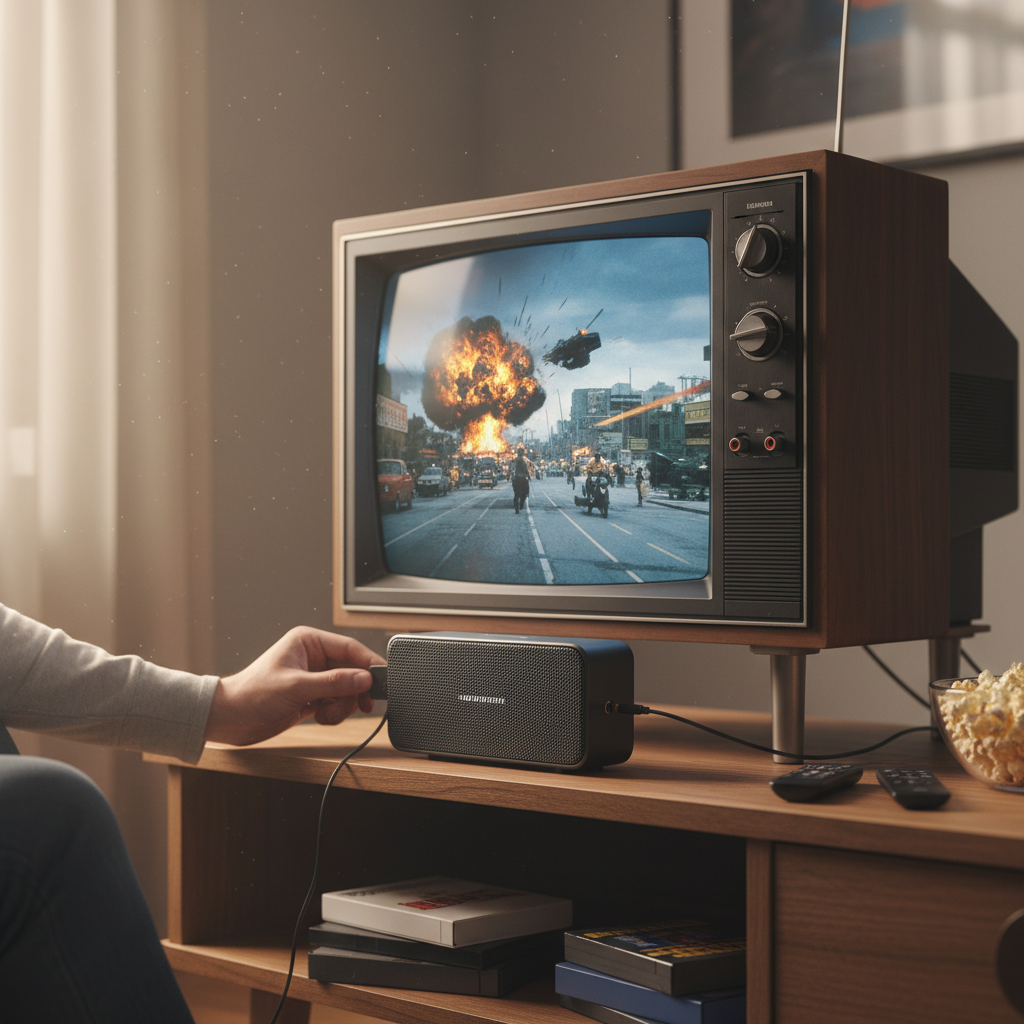
Imagine settling in for a movie night, but your old TV’s speakers just aren’t cutting it. The dialogue is muffled, the explosions lack punch, and the overall audio experience leaves much to be desired. You have a fantastic Bluetooth speaker, but your TV, a cherished relic from a bygone era, lacks the modern wireless connectivity. How do you bridge this gap and bring vibrant, wireless sound to your classic television? This guide will walk you through the simple, effective methods to connect your Bluetooth speaker to almost any old TV, transforming your viewing experience without needing to buy a new display.
Understanding the Challenge: Why Old TVs Need a Boost
Older televisions, while often reliable, predate the widespread adoption of built-in Bluetooth technology. This means they can’t natively send audio signals wirelessly to devices like your favorite Bluetooth speaker. Instead, these TVs typically rely on physical audio output ports to send sound to external devices such as soundbars, home theater systems, or headphones. Understanding these ports is the first step to unlocking wireless audio.
Common audio output ports you’ll find on older TVs include:
- RCA (Red and White): These are a pair of analog ports, often colored red for the right audio channel and white for the left. They provide stereo sound.
- 3.5mm Headphone Jack: A universal analog port, similar to what’s found on older smartphones or MP3 players, designed for connecting headphones or small speakers.
- Optical (TOSLINK): A digital audio output port that uses fiber optic cables to transmit high-quality digital audio signals. It’s often labeled “Optical Audio Out” or “Digital Audio Out.”
Without built-in Bluetooth, a direct wireless connection isn’t possible, necessitating an external solution to convert your TV’s wired audio signal into a Bluetooth-friendly format.
The Essential Tool: Bluetooth Audio Transmitters
The key to unlocking wireless sound for your old TV is a Bluetooth audio transmitter. This small, often unassuming device acts as a crucial bridge, translating your TV’s traditional audio output into a wireless Bluetooth signal.
What is a Bluetooth Transmitter?
|
Our Picks for the Best Bluetooth speaker in 2026
As an Amazon Associate I earn from qualifying purchases.
|
||
| Num | Product | Action |
|---|---|---|
| 1 | Portable Bluetooth Speaker, IPX7 Waterproof Wireless Speaker with 20W Loud Stereo Sound, 15H Playtime & Beat-Synced RGB Light, Small Outdoor Speaker for Shower, Pool, Beach, Hiking and Gifts |

|
| 2 | Soundcore Boom 2 By Anker, Outdoor Speaker, 80W, Subwoofer, BassUp 2.0, 24H Playtime, IPX7 Waterproof, Floatable, RGB Lights, USB-C, Custom EQ, Bluetooth 5.3, Portable for Camping and Beach - Black |
|
| 3 | JBL Go 4 - Ultra-Portable, Waterproof and Dustproof Bluetooth Speaker, Big JBL Pro Sound with Punchy bass, 7-Hour Built-in Battery, Made in Part with Recycled Materials (Blue) |
|
| 4 | Anker Soundcore 2 Portable Bluetooth Speaker, 12W Stereo Sound with Deep Bass, IPX7 Waterproof, 24-Hour Playtime, Built-in Mic, for Home, Outdoors & Travel |
|
| 5 | BolaButty Bluetooth Speaker with HD Sound, Portable Wireless, IPX5 Waterproof, Up to 20H Playtime, TWS Pairing, BT5.3, for Home/Party/Outdoor/Beach, Electronic Gadgets, Birthday Gift (Black) |
|
| 6 | JBL FLIP 5, Waterproof Portable Bluetooth Speaker, Black, Small |
|
| 7 | JBL Charge 6 - Portable Waterproof & Drop-Proof Bluetooth Speaker, Bold JBL Pro Sound with AI Sound Boost, 28Hrs of Playtime, Built-in powerbank & Comes with a Sturdy/Removable Carrying Strap (Black) |
|
| 8 | Monster S620 Bluetooth Speaker, Wireless Portable Outdoor Bluetooth Speakers, 60W True Wireless Stereo IPX8 Waterproof, Dual PairingBluetooth 5.4 Built-in Mic, Perfect for Home, Blue |
|
| 9 | Bose SoundLink Flex Bluetooth Speaker (2nd Gen) - Portable Outdoor Speaker with Hi-Fi Audio, Waterproof and Dustproof, USB-C, Up to 12 Hours Battery Life, Twilight Blue - Limited Edition Color |
|
| 10 | JBL Go 3 - Portable Mini Bluetooth Speaker, big audio and punchy bass, IP67 waterproof and dustproof, 5 hours of playtime, speaker for home, outdoor and travel (Black) |
|
A Bluetooth transmitter is an electronic device designed to convert an analog or digital audio signal from a source (like your TV) into a Bluetooth signal. This signal can then be broadcast wirelessly to a compatible Bluetooth receiving device, such as your Bluetooth speaker. Think of it as giving your old TV the ability to “speak” Bluetooth.
How it Works
The process is straightforward:
- You connect the Bluetooth transmitter to one of your TV’s audio output ports (RCA, 3.5mm, or Optical).
- The transmitter takes the audio signal from the TV.
- It then processes this signal and broadcasts it wirelessly using Bluetooth technology.
- Your Bluetooth speaker, when put into pairing mode, detects and connects to the transmitter, receiving the audio signal and playing it aloud.
Key Features to Look For in a Transmitter
Choosing the right Bluetooth transmitter ensures a seamless and high-quality audio experience. Consider these features when making your selection:
- Input Compatibility: Ensure the transmitter has the correct input ports to match your TV’s audio outputs. Most versatile transmitters offer multiple inputs like 3.5mm, RCA, and Optical.
- Bluetooth Version: Look for Bluetooth 4.0 or higher (e.g., 5.0, 5.1, 5.2). Newer versions offer improved range, faster pairing, and greater stability.
- Low Latency Codecs: This is critical for TV viewing. Standard Bluetooth can introduce a slight delay (latency) between the video on screen and the audio you hear, causing distracting lip-sync issues. Transmitters and speakers supporting codecs like aptX Low Latency drastically reduce this delay, ensuring your audio and video are perfectly synchronized.
- Power Source: Many transmitters are USB-powered, often drawing power directly from a USB port on your TV or via a wall adapter. Some also include rechargeable batteries for portable use.
- Dual Pairing: For an even more immersive experience or to share audio with another person, some transmitters can connect to two Bluetooth speakers or headphones simultaneously.
Step-by-Step Connection Guides
Connecting your Bluetooth speaker to your old TV is a simple process once you have the right transmitter. Here are the common methods based on your TV’s audio output ports.
Method 1: Using a Transmitter with RCA (Red/White) Audio Ports
If your TV has red and white RCA audio output jacks, this is a very common and effective method.
- Locate RCA Outputs: Find the “Audio Out” RCA ports on your TV. They are typically colored red (right channel) and white (left channel).
- Connect the Cable: You’ll usually need an RCA to 3.5mm adapter cable. Connect the red and white plugs into your TV’s corresponding RCA “Audio Out” ports.
- Connect to Transmitter: Plug the 3.5mm end of the adapter cable into the “Audio In” port on your Bluetooth transmitter.
- Power On Transmitter: Plug the transmitter into a power source (a USB port on your TV or a wall adapter) and turn it on.
- Enter Pairing Mode: Put your Bluetooth transmitter into pairing mode. This usually involves pressing and holding a dedicated pairing button or the power button for a few seconds until an indicator light flashes.
- Enter Speaker Pairing Mode: Put your Bluetooth speaker into its own pairing mode. Consult your speaker’s manual if unsure.
- Pair Devices: The transmitter will automatically search for and connect to your speaker. Once paired, the indicator lights on both devices will typically change to a solid color.
- Adjust TV Audio: You may need to go into your TV’s audio settings menu and select “External Speakers” or “RCA Audio Out” as the primary audio output. Test the sound and adjust volumes on both the TV and speaker.
Method 2: Using a Transmitter with an Optical (TOSLINK) Audio Port
Optical audio offers a high-quality digital connection, often found on slightly newer “old” TVs.
- Locate Optical Output: Find the “Digital Audio Out (Optical)” or “TOSLINK” port on your TV. It’s usually a square port with a small flap. Remove any protective caps from the port and the optical cable.
- Connect the Optical Cable: Plug one end of an optical audio cable into your TV’s optical output. Plug the other end into the “Optical In” port on your Bluetooth transmitter.
- Power On and Pair: Follow steps 4-7 from Method 1 to power on your transmitter, put it into pairing mode, and then pair your Bluetooth speaker.
- Adjust TV Audio Settings: This step is crucial for optical connections. Go into your TV’s audio settings and set the digital audio output format to “PCM” or “Stereo.” Many Bluetooth transmitters do not support multi-channel audio formats like Dolby Digital or DTS, which can lead to no sound if not adjusted.
Method 3: Using a Transmitter with a 3.5mm Headphone Jack
This is often the simplest method if your TV has a standard headphone jack.
- Locate 3.5mm Jack: Find the 3.5mm headphone jack on your TV.
- Connect 3.5mm Cable: Plug one end of a 3.5mm audio cable into your TV’s headphone jack. Plug the other end into the “Audio In” 3.5mm port on your Bluetooth transmitter.
- Power On and Pair: Follow steps 4-7 from Method 1 to power on your transmitter, put it into pairing mode, and then pair your Bluetooth speaker.
- Note on TV Speakers: Be aware that using the headphone jack often automatically mutes your TV’s internal speakers.
Alternative (Less Common): Checking for Hidden Bluetooth on Smart TVs
In very rare cases, some older “smart” TVs might have dormant Bluetooth hardware that can be activated via a system software update. While this is not a common or reliable solution for truly old TVs, it’s worth checking your TV’s settings for a “Software Update” option. If an update is available, install it and then check if a Bluetooth option appears in your TV’s sound or general settings. This is typically an exception rather than the rule for most older models.
Troubleshooting Common Audio Issues
Even with the correct setup, you might encounter a few hiccups. Here’s how to address them:
- No Sound:
- Check all connections: Ensure cables are firmly seated in both the TV and transmitter.
- Verify TV Audio Output Settings: Confirm your TV is set to output audio through the correct port (RCA, Optical, or Headphone). For optical, ensure “PCM” is selected.
- Volume Levels: Increase the volume on both your TV and your Bluetooth speaker.
- Power: Ensure the transmitter is powered on and receiving power.
- Audio Delay (Lip-Sync Issues):
- Low Latency Transmitter/Speaker: If you’re experiencing noticeable lag, your transmitter and/or speaker may not support low-latency codecs like aptX Low Latency. Upgrading to compatible devices is the best solution.
- TV Audio Delay Settings: Some TVs have a “Lip Sync” or “Audio Delay” setting in their audio menu that can be adjusted.
- Pairing Problems:
- Proximity: Make sure the transmitter and speaker are close to each other during pairing.
- Pairing Mode: Double-check that both devices are actively in pairing mode.
- Interference: Temporarily turn off other Bluetooth devices nearby.
- Reset: Try resetting both the transmitter and the speaker to factory settings if possible, then attempt pairing again.
- Static or Interference:
- Distance: Move the transmitter and speaker away from other electronic devices (Wi-Fi routers, microwaves) that might cause interference.
- Cable Quality: If using an analog connection (RCA, 3.5mm), a higher-quality shielded cable can reduce noise.
Elevating Your Entertainment: Benefits of Wireless TV Audio
Connecting a Bluetooth speaker to your old TV is more than just a technical workaround; it’s a significant upgrade to your entertainment experience.
- Improved Sound Quality: Even basic Bluetooth speakers often offer far richer bass, clearer dialogue, and a wider soundstage compared to the often tinny, downward-firing speakers built into older TVs. This makes movies more cinematic and music more enjoyable.
- Flexibility and Placement Freedom: With a wireless connection, you can place your Bluetooth speaker wherever it sounds best in your room, rather than being tethered to the TV. You can even move it to another room for temporary audio needs.
- Personal Listening: For late-night viewing, you can connect Bluetooth headphones (using the same transmitter) to enjoy your shows without disturbing others in the house.
- Cost-Effective Upgrade: Instead of investing in a brand-new TV or a complex home theater system, a relatively inexpensive Bluetooth transmitter and your existing speaker can provide a substantial audio enhancement. It breathes new life into an otherwise perfectly functional television.
“The magic of a Bluetooth transmitter isn’t just about cutting cords; it’s about unlocking a new dimension of audio quality and convenience for any TV, making your old setup feel brand new.” – Admin, ReviewGE, Bluetooth Speaker Technician
Conclusion
Bringing modern wireless audio to your older television is not only possible but also remarkably straightforward with the right tools. By understanding your TV’s audio output options and employing a reliable Bluetooth audio transmitter, you can effortlessly connect your favorite Bluetooth speaker, dramatically enhancing your viewing and listening experience. This simple upgrade revitalizes your existing entertainment system, offering improved sound quality, greater flexibility, and the joy of immersive audio. Ready to transform your TV’s sound? Pick up a Bluetooth transmitter today and rediscover your favorite movies and shows with crystal-clear, wireless audio!
What’s your favorite content to enjoy with improved TV audio?
Câu Hỏi Thường Gặp
Can I connect multiple Bluetooth speakers to my old TV?
Yes, some advanced Bluetooth transmitters feature a “dual pairing” function, allowing them to connect to two Bluetooth speakers or headphones simultaneously. This can create a wider stereo sound or enable two people to listen privately. Ensure your chosen transmitter supports this specific capability.
Will there be a delay between the video and audio?
A common concern is audio-video synchronization. Standard Bluetooth can have a slight delay. To minimize this, look for a Bluetooth transmitter and speaker that both support aptX Low Latency technology, which significantly reduces lag for a perfectly synced experience.
Do I need a special type of Bluetooth speaker?
No, most standard Bluetooth speakers are compatible with Bluetooth audio transmitters. However, for the best experience, especially regarding audio delay, a speaker that also supports aptX Low Latency will pair perfectly with a compatible transmitter.
What’s the difference between a Bluetooth transmitter and receiver?
A Bluetooth transmitter sends an audio signal from a non-Bluetooth source (like your TV) to a Bluetooth speaker. A Bluetooth receiver does the opposite: it receives a Bluetooth signal from a device (like your phone) and outputs it to a non-Bluetooth audio system (like old stereo speakers).
Can I use an HDMI port for Bluetooth audio?
Directly, no. HDMI ports on old TVs are typically for video and audio input (from a Blu-ray player, for example) or audio output via HDMI ARC (Audio Return Channel) on newer TVs. If your TV has HDMI ARC, you might use an “HDMI ARC audio extractor” to convert the signal to optical or 3.5mm, then connect a Bluetooth transmitter to that output. This is a more complex setup.